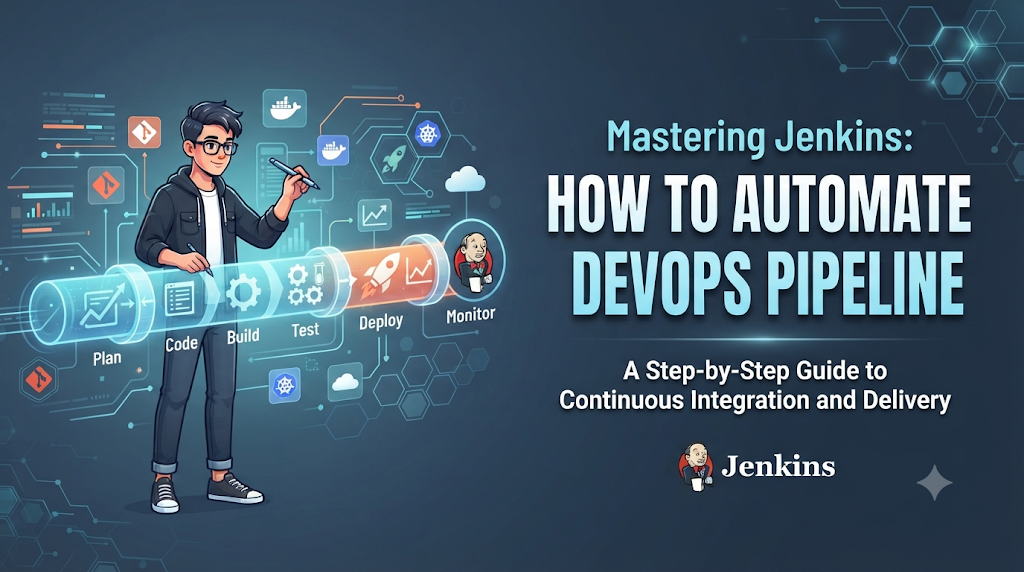
1. Introduction: Bringing Automation Into DevOps
Manual software delivery processes can significantly slow down development teams and introduce human errors. When building, testing, and releasing applications rely on manual interventions, releases become infrequent, risky, and stressful. To keep pace with modern business requirements, organizations require a reliable mechanism to automate repetitive activities throughout the software delivery lifecycle. At DevOpsSchool, practitioners often explore learning resources and structured paths for building practical Jenkins and DevOps skills to overcome these deployment bottlenecks.
Jenkins acts as a foundational orchestration engine that connects different stages of software delivery, automates repetitive tasks, and supports continuous integration and continuous delivery. By bridging code commits with production environments, Jenkins enables developers to focus on writing application features while automated pipelines handle compilation, testing, quality gates, and deployments.
2. What Jenkins Does Inside A DevOps Pipeline
Jenkins is an open-source automation server that plays a central role in automating software workflows. By continuously monitoring version control systems, Jenkins can automatically trigger build sequences whenever code changes occur.
Important Capabilities
- Continuous Integration (CI): Automatically merges code changes from multiple developers into a central branch frequently, ensuring early detection of integration conflicts.
- Continuous Delivery and Deployment (CD): Automates the release process so that verified application builds can be promoted to staging or production environments seamlessly.
- Automated Builds and Tests: Compiles source code and executes automated test suites to validate functional correctness.
- Pipeline Orchestration: Coordinates multi-stage workflows with clear dependencies and error-handling routines.
- Plugin-Based Integrations: Connects with thousands of external tools covering version control, build tools, cloud providers, and notification channels.
- Build and Deployment Notifications: Alerts teams regarding pipeline statuses, failures, or successes via messaging integrations and emails.
Freestyle Jobs vs. Pipeline-Based Automation
Traditional Freestyle jobs rely on web-based form configurations where tasks are defined sequentially through UI menus. While easy to set up for simple tasks, Freestyle jobs lack version control, are difficult to scale across complex projects, and cannot be easily reviewed through code reviews.
In contrast, Pipeline-based automation defines the entire build and deployment workflow as code within a text file (Jenkinsfile). This approach ensures pipeline definitions are version-controlled, auditable, and reproducible across different environments.
Understanding CI vs. CD
- Continuous Integration (CI): Focuses on automated building and testing every time code is committed.
- Continuous Delivery (CD): Ensures that code is always in a releasable state, allowing manual or automated promotion to production.
- Continuous Deployment (CD): Takes continuous delivery a step further by automatically pushing every verified build straight to production without manual sign-offs.
3. Plan the Automation Workflow
Before configuring Jenkins, it is essential to map out the application delivery process. A well-structured pipeline breaks down software delivery into clear, manageable stages where each step depends on the success of the previous one.
[Code Commit] -> [Checkout] -> [Install Dependencies] -> [Build] -> [Test] -> [Quality Scan] -> [Dockerize] -> [Deploy]
- Source Code Checkout: Pulls the latest source code from the designated branch in the version control repository.
- Dependency Installation: Downloads and installs project libraries and packages required for compilation and testing.
- Application Build: Compiles code or packages application assets into executable binaries or bundles.
- Automated Testing: Executes unit, integration, and regression tests to verify software behavior.
- Code Quality and Security Checks: Scans source code and dependencies for vulnerabilities, styling violations, and security risks.
- Artifact Packaging: Bundles the verified application into a distributable format or container image.
- Deployment: Promotes the application artifact to target environments (such as testing, staging, or production).
- Post-deployment Verification: Executes health checks and smoke tests to confirm successful deployment.
4. Set Up Jenkins for Your Practice Environment
Setting up a reliable practice environment ensures you can experiment with pipelines safely before introducing automation into production systems.
Basic System Requirements
- Operating System: Linux (Ubuntu/CentOS), macOS, or Windows (via WSL or Docker).
- Hardware: Minimum 2 CPU cores and 4 GB RAM to comfortably run Jenkins alongside build runtimes and test containers.
- Java Runtime Environment (JRE): Jenkins requires Java (typically Java 17 or 11 depending on the specific Jenkins release).
Jenkins Installation Options
- Running via Docker: The cleanest way to run Jenkins for practice environments is using Docker, isolating dependencies from the host machine.
- Native Package Installation: Installing Jenkins directly on a Linux virtual machine using official package repositories (APT or YUM).
Initial Configuration and Dashboard Access
Upon launching Jenkins for the first time, unlock the installation using the initial administrative password generated in the logs. Complete the setup wizard by installing suggested plugins, creating a secure administrative account, and confirming the controller URL.
Jenkins Controller and Agents
- Jenkins Controller: Manages the configuration, schedules build jobs, dispatches tasks, and handles user interactions through the web interface.
- Jenkins Agents: Dedicated worker nodes that execute the actual build and test workloads dispatched by the controller. In production environments, running heavy build tasks on agents rather than the controller prevents resource contention and maintains system stability.
5. Connect Jenkins With Your Source Code Repository
To automate builds, Jenkins must communicate securely with your Git repository.
Repository Configuration and Branch Selection
Specify the repository URL and choose which branches (such as main or development) the pipeline should monitor or build.
Polling vs. Webhook Triggers
- Polling: Jenkins periodically checks the Git repository for changes at scheduled intervals (e.g., every 5 minutes). This consumes unnecessary resources if no changes occurred.
- Webhooks: The Git hosting provider (such as GitHub or GitLab) sends an instant HTTP notification to Jenkins the moment code is pushed, triggering the pipeline immediately. Webhooks provide a much faster and more efficient trigger mechanism.
Credential Configuration and Security
Never hardcode passwords, SSH keys, or API tokens in pipeline configuration files or source code. Instead, store sensitive credentials securely within Jenkins’ built-in credential management system and reference them by ID inside your pipeline scripts.
6. Create Your First Automated Jenkins Pipeline
To understand how pipeline scripts operate, let’s build a small practice project using a sample Node.js or Python web application.
Pipeline Creation Steps
- Navigate to the Jenkins dashboard and click New Item.
- Enter a project name, select Pipeline, and click OK.
- Under the Pipeline section, choose Pipeline script from SCM if loading from a repository, or write inline script for initial testing.
- Define your stages using the Declarative Pipeline syntax.
Practical Declarative Pipeline Example
Groovy
pipeline {
    agent any
    stages {
        stage('Checkout') {
            steps {
                echo 'Checking out source code from Git repository...'
                // git url: 'https://github.com/example/sample-app.git', branch: 'main'
            }
        }
        stage('Install Dependencies') {
            steps {
                echo 'Installing project dependencies...'
                // sh 'npm install'
            }
        }
        stage('Run Tests') {
            steps {
                echo 'Executing automated test suite...'
                // sh 'npm test'
            }
        }
    }
    post {
        success {
            echo 'Pipeline completed successfully!'
        }
        failure {
            echo 'Pipeline failed during execution.'
        }
    }
}
- pipeline: Root block defining the entire workflow.
- agent: Specifies where the pipeline or stage will execute (e.g.,
agent anyuses any available executor). - stages: Container grouping all individual pipeline stages.
- stage: An individual phase of the workflow (e.g., Build, Test).
- steps: Specific commands or actions executed sequentially within a stage.
- post: Actions executed after pipeline completion based on final build status (
success,failure,always).
7. Automate Build and Testing Activities
Once code is checked out, Jenkins should compile the application and execute tests automatically.
Dependency Installation and Compilation
Depending on your technology stack, the pipeline runs package managers (such as npm, pip, maven, or gradle) to download required libraries and compile source code into executable binaries or packages.
Test Execution and Result Publishing
Automated unit and integration tests validate functional behavior. Jenkins captures test reports (such as JUnit XML files) and displays historical trends, test counts, and failure details directly in the dashboard.
Handling Build Failures
If any test fails during the test stage, Jenkins immediately aborts the pipeline execution, flags the build as failed, and prevents the unverified artifact from moving forward to deployment stages.
8. Add Code Quality and Security Validation
Ensuring functional correctness is not enough; production-grade applications must also maintain high code quality and security standards.
Static Analysis and Vulnerability Scanning
- Static Code Analysis: Inspects source code for code smells, complexity issues, and style violations.
- Dependency Vulnerability Scanning: Checks third-party libraries against known vulnerability databases.
- Secret Detection: Scans repositories to ensure API keys or passwords are not accidentally checked into source control.
- Container Image Scanning: Evaluates base images and application containers for known security flaws.
Quality Gates
Configure quality gates that automatically fail the build if code coverage drops below a defined threshold or if critical security vulnerabilities are detected, ensuring insecure code never reaches production.
9. Automate Docker Build and Artifact Management
Packaging applications into container images ensures consistent execution across development, testing, and production environments.
Dockerfile Preparation and Image Creation
The pipeline utilizes a project Dockerfile to build a lightweight container image containing the application runtime and compiled assets.
Practical Container Build Example
Groovy
stage('Build Docker Image') {
    steps {
        script {
            echo 'Building Docker container image...'
            // sh 'docker build -t my-app:${BUILD_NUMBER} .'
        }
    }
}
Registry Authentication and Publishing
After building the image, the pipeline logs into a secure container registry (such as Docker Hub, AWS ECR, or GitHub Packages) using stored credentials, tags the image with the corresponding build number or Git commit hash, and pushes the image to the registry for downstream deployment.
10. Configure Automated Deployment
Extending the pipeline beyond building and testing allows teams to automate deployments across environments.
Environment Promotion Workflow
- Test Environment: Automatically deploy successful builds to a sandbox or test environment for manual or automated QA validation.
- Staging Environment: Promote verified builds to a staging environment that mirrors production.
- Production Deployment: Release the application to production users, often gated behind a manual approval step.
Approval Requirements and Post-Deployment Checks
In production pipelines, insert an input step to pause execution and require explicit approval from authorized team members before deploying. Following deployment, execute health check endpoints or smoke tests to confirm application availability.
11. Make Jenkins Pipelines More Efficient
Optimizing pipeline execution times improves developer feedback loops and conserves infrastructure resources.
Optimization Techniques
- Parallel Execution: Run independent tasks (such as running unit tests across multiple Node versions or scanning code simultaneously) in parallel using the
parallelblock. - Build Caching: Cache downloaded dependencies (like Maven repository folders or
node_modules) between builds to avoid downloading identical packages repeatedly. - Shared Libraries: Centralize common pipeline logic into shared Groovy libraries to keep individual
Jenkinsfilescripts clean and DRY (Don’t Repeat Yourself). - Timeout and Retry Controls: Set execution timeouts on flaky steps and configure retries for transient network failures.
12. Secure and Maintain Jenkins
Operating Jenkins securely requires implementing strict access controls and regular maintenance routines.
Security Best Practices
- Role-Based Access Control (RBAC): Restrict user permissions based on job functions, ensuring developers only access projects they manage.
- Least-Privilege Principle: Grant Jenkins agents and service accounts only the minimum permissions required to perform their tasks.
- Credential Rotation: Regularly update SSH keys, API tokens, and registry passwords stored in Jenkins credentials.
- Plugin Updates: Keep plugins updated to patch known security vulnerabilities.
- Auditability: Enable audit logs to track configuration changes and manual build triggers.
13. Troubleshoot Common Jenkins Pipeline Failures
When pipelines fail, systematic troubleshooting helps isolate and resolve issues quickly.
Structured Troubleshooting Checklist
- Console Logs: Examine the detailed console output for the specific failing stage to identify error messages or stack traces.
- Trigger Issues: If jobs fail to trigger, verify webhook configurations and repository URL permissions.
- Missing Tools: Ensure required build tools (such as Java, Node.js, Maven, or Docker) are installed on the active Jenkins agent and correctly configured in Global Tool Configuration.
- Agent Connectivity: Check agent node health, disk space, and network connectivity if jobs remain stuck in queue.
- Credentials: Verify that credential IDs referenced in pipeline scripts match active entries in the Jenkins credential store.
14. Practical Project: Automate an Application From Code to Deployment
Bring the previous concepts together in one end-to-end practice exercise. Follow this workflow to implement a complete pipeline:
- Check out application code from your Git repository.
- Install project dependencies using the appropriate build tool.
- Execute automated unit tests.
- Run basic code quality scans and security checks.
- Package the application into a distributable archive.
- Build and tag a Docker container image.
- Push the image to your container registry.
- Deploy the container to a test environment.
- Verify application availability using health check endpoints.
Validation Checklist
- [ ] Pipeline triggers automatically upon Git push via webhook.
- [ ] All stages execute sequentially without manual intervention.
- [ ] Test failures correctly halt the pipeline before artifact creation.
- [ ] Container images are tagged with unique build identifiers.
- [ ] Deployment completes successfully and passes health checks.
15. Measure the Value of Jenkins Automation
Evaluating pipeline performance helps teams identify bottlenecks and guide ongoing improvements.
Key Metrics to Track
- Build Duration: Measures how long a pipeline takes to run from start to finish.
- Success Rate: Tracks the ratio of successful builds versus failed builds over time.
- Test Coverage: Monitors the percentage of code covered by automated tests.
- Deployment Frequency: Measures how often code is successfully deployed to production.
- Mean Time to Recovery (MTTR): Tracks how quickly teams recover from failed deployments or broken builds.
Evaluating these metrics ensures automation provides genuine operational value rather than running workflows blindly.
16. Final Thoughts: Make Software Delivery Repeatable
Jenkins helps teams create repeatable, automated software delivery workflows that eliminate manual toil and reduce deployment risks. By establishing reliable automated testing, secure credential management, controlled environment promotions, and continuous feedback loops, organizations can deliver high-quality software with confidence. Start your automation journey by drafting a simple Jenkinsfile for a basic project, and gradually expand your pipeline stages, quality gates, and deployment targets as your skills and project requirements grow.